
Booking Portal
How your clients book photo sessions through an 8-step guided process.
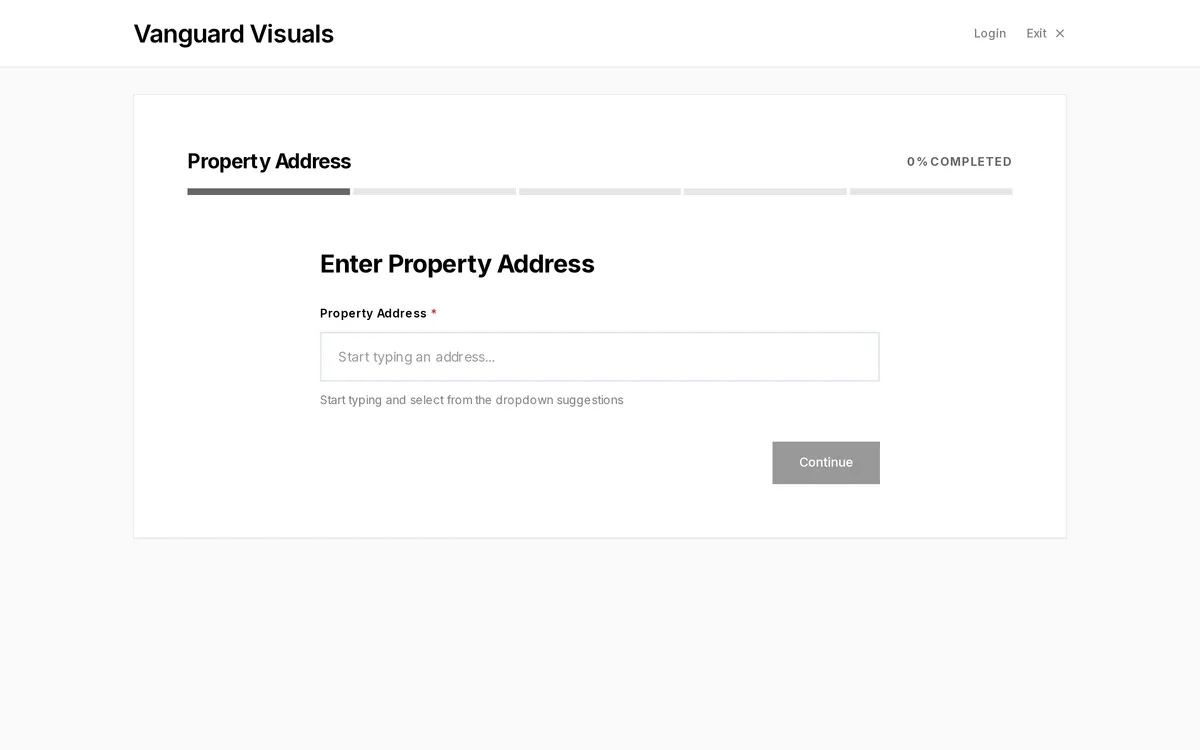
Overview
The booking portal is the public-facing page where your clients schedule photo sessions. It walks them through an 8-step process.
Step 1: Property Address
The client enters the property address. PhotoFounder auto-detects the property and pulls in details like beds, baths, and square footage from public listing data.
Step 2: Property Details
Auto-populated property characteristics are displayed for confirmation. The client can adjust if needed.
Step 3: Service Selection
Available services are displayed based on the property size. Clients choose a package (e.g., "Standard Interior — 25 photos") and optional extras (e.g., "Add Drone Aerials," "Add Virtual Staging"). Pricing updates in real time.
Step 4: Agent Selection
If enabled, clients can select their real estate agent from a directory, or add a new one. This step is hidden for public/walk-in customers and shown only for groups that require agent assignment.
Step 5: Date & Time
A calendar displays available dates and time slots. Availability is calculated in real time based on staff schedules, existing appointments, location, and travel time between jobs. Clients can request a specific photographer if preferred.
Step 6: Customer Details
The client provides their contact info (name, email, phone) and fills in any custom fields you've configured — such as lockbox code, gate code, or special instructions.
Step 7: Payment
If Stripe is connected, the client pays online. Coupon and referral codes can be applied. A full price breakdown is shown (service + extras - discounts + travel fees). Free appointments skip this step automatically.
Step 8: Confirmation
The client sees a confirmation summary and receives an email with the appointment details (including a calendar invite attachment). New clients are prompted to set a password for their customer portal account.
Additional Features
- Embeddable widget — The booking portal can be embedded on your own website via an iframe.
- Coupon support — Clients can enter coupon codes, or you can embed coupon codes in URL parameters for automatic application.
- Service area detection — If the property is outside your defined service area, a travel fee is automatically calculated and added.
- Customer groups — Different client groups (public, Redfin agents, custom groups) can see different service menus and pricing.
- Branded experience — The booking portal reflects your business colors, logo, fonts, and optional dark mode.